
Pussy888 iOS profile installation can fail when the device lacks compatibility, blocks configuration profiles, or can’t verify the required certificate. Outdated iOS versions, management restrictions, and unstable downloads can also stop the profile from installing correctly.
Our iOS download details covers the setup from the start.
The files themselves are on the download page.
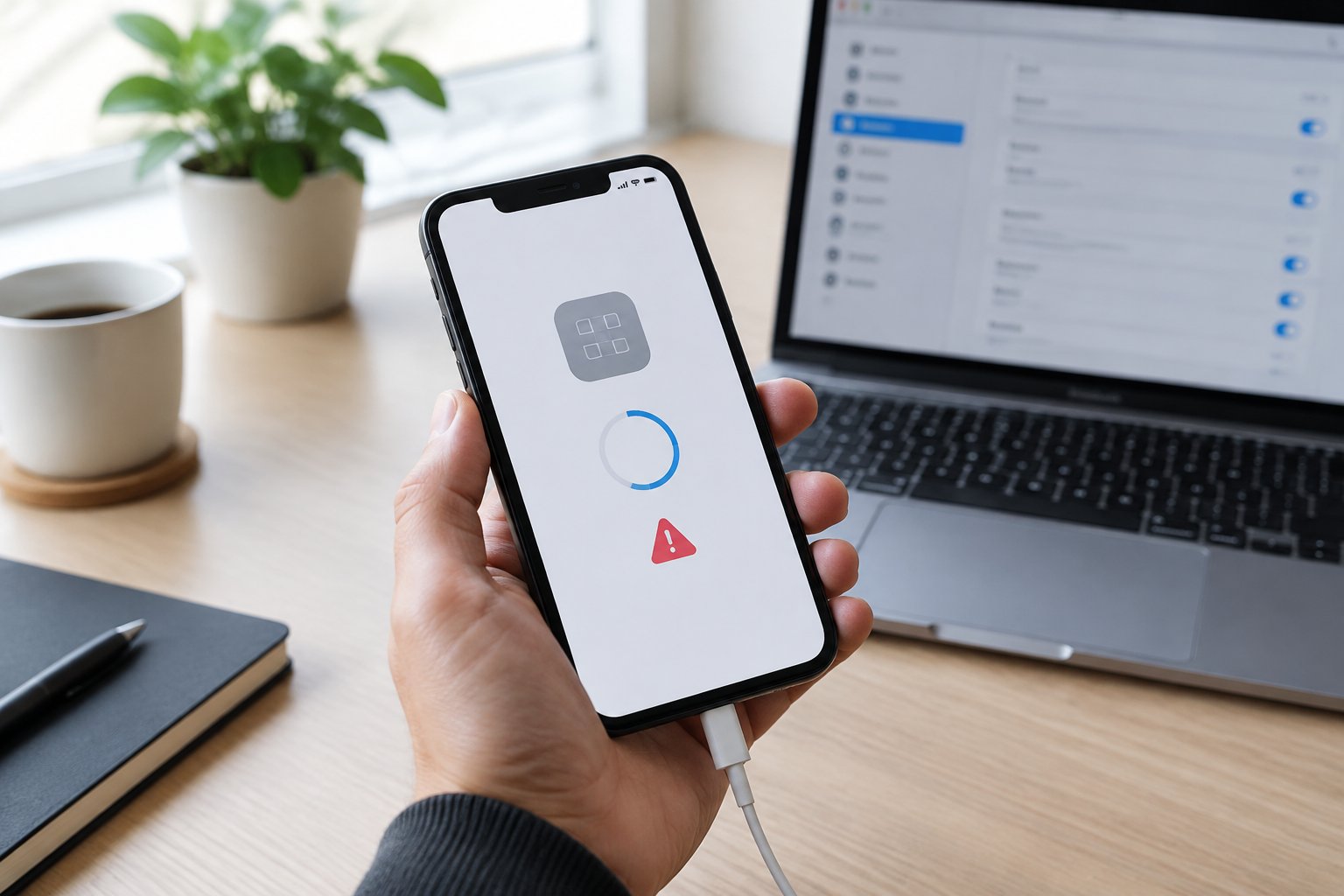
The safest fix is to confirm device compatibility, remove download errors, and verify the profile only through a trusted, official source. The steps below explain how iOS profiles work, which settings affect installation, and how to identify certificate or security restrictions without weakening device protection.
They also cover safe installation practices and when contacting support makes more sense than repeatedly retrying the download.
What an iOS Configuration Profile Does
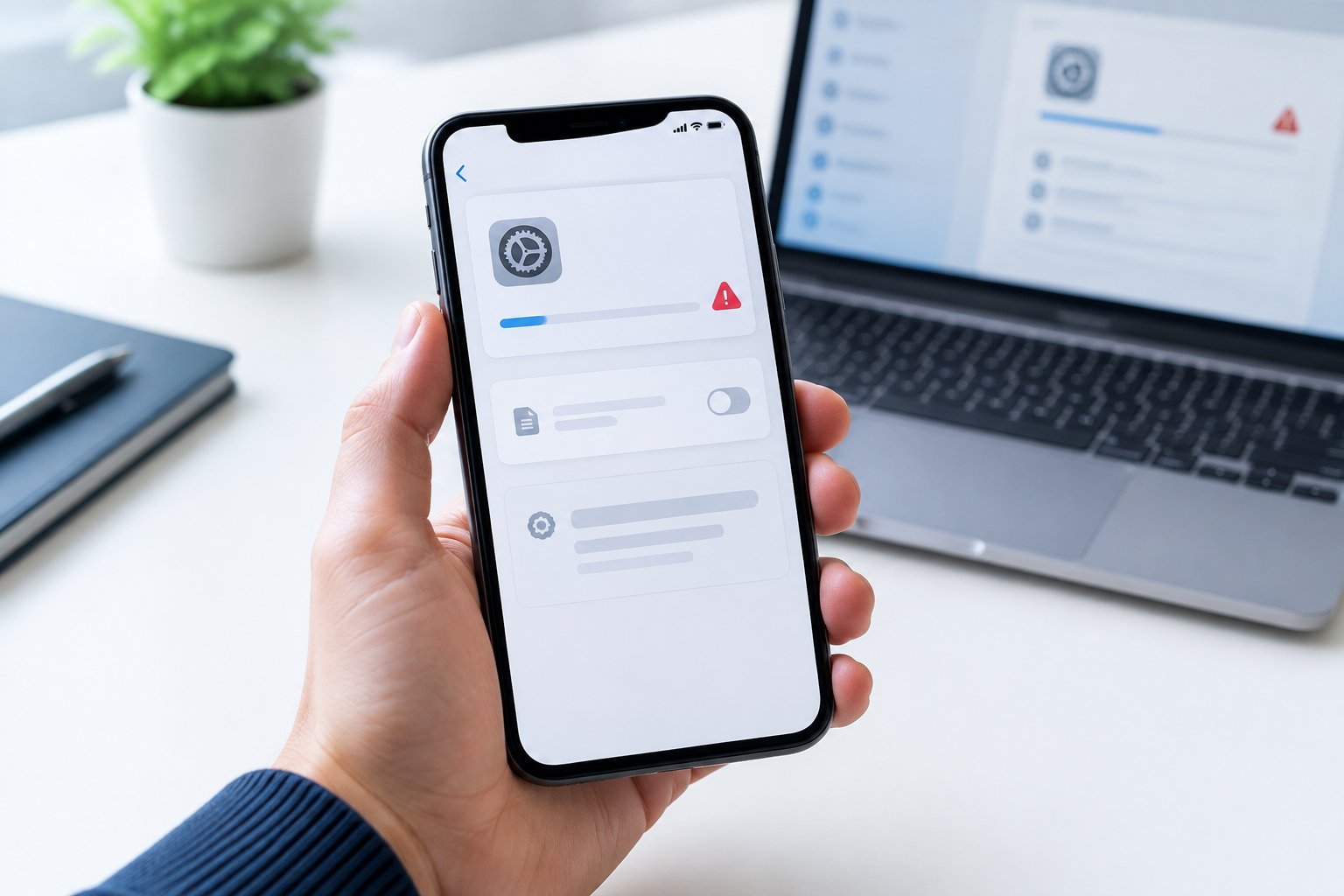
An iOS configuration profile applies defined settings, restrictions, certificates, or device-management instructions. Installation depends on device security checks, profile validity, and whether the profile comes from a trusted organization.
Profile Installation Requirements
After downloading a profile, the user must open Settings and select Profile Downloaded or VPN & Device Management, depending on the iOS version. The profile must be installed within the available download window. Apple states that iOS automatically deletes an uninstalled profile after eight minutes.
The profile also needs a valid signature, compatible settings, and a trusted source. A profile linked to an organization may enroll the device in mobile device management (MDM), allowing that organization to enforce restrictions or install approved applications.
If an iOS profile for a third-party app such as Pussy888 fails to install, the device may reject it because the profile expired, conflicts with an existing profile, requires a supervised device, or uses unsupported settings. The user should avoid profiles from unknown sources because they can change network, certificate, or management settings.
How Trust Settings Affect App Access
A configuration profile and an app’s trust status serve different purposes. The profile may install a certificate or establish management settings, while iOS separately decides whether the developer or enterprise app can run.
After installation, the user may need to open Settings > General > VPN & Device Management, select the developer or organization, and review the trust option. The exact controls vary by iOS version and by whether the device has MDM enrollment.
Trusting an enterprise developer gives the signed app permission to launch, but it doesn’t guarantee that the app will keep working. Apple can revoke the certificate, the profile can expire, or the organization can withdraw access. If iOS displays an untrusted-developer, revoked-certificate, or verification error, the user should remove the profile and app unless the source is a known, legitimate organization.
Check Device Compatibility
A profile may fail to install when the iPhone runs an unsupported iOS release, lacks free storage, or has an unstable connection. The user should also confirm that Safari completes the download and that iOS allows the profile to remain available in Settings.
Supported iOS Versions
The profile provider should state the required iOS version and supported device models. If the iPhone runs an older release, the user should open Settings > General > Software Update and install any compatible update before trying again. An outdated system can cause compatibility or verification errors, while a beta release may not work with the profile.
The user should check the downloaded file in Settings > General > VPN & Device Management. If no profile appears, the download may have failed or expired. iOS automatically removes an uninstalled configuration profile after eight minutes, so the user should open Settings promptly after downloading it. If Stolen Device Protection blocks installation, the user may need to disable it temporarily outside familiar locations, then enable it again after installation.
Storage and Network Requirements
The iPhone needs enough available storage to download and process the profile. The user can check space under Settings > General > iPhone Storage and remove unnecessary files if storage is nearly full. A configuration profile usually requires little space, but low storage can still interrupt downloads or system operations.
A stable connection matters, too. The user should use reliable Wi‑Fi or mobile data, disable any VPN that interferes with the download, and open the provider’s link in Safari instead of an in-app browser. After downloading, the user should go straight to Settings and select Profile Downloaded. If the message doesn’t appear, restarting the iPhone and downloading the profile again can create a fresh installation attempt.
Prepare Your iPhone or iPad
The device should have enough storage, a stable internet connection, and the latest compatible iOS or iPadOS version. Removing conflicting profiles and restarting the device can also clear issues that prevent the Pussy888 iOS profile from installing.
Remove Older Configuration Profiles
An older or incomplete profile can conflict with a new installation. The user can check installed profiles by opening Settings > General > VPN & Device Management. On some versions, this menu may appear as Profiles & Device Management.
They should select any profile connected with the previous installation, review its details, and choose Remove Profile if it’s no longer needed. The device may request its passcode, and removing a work, school, or managed-device profile could require administrator approval.
After removal, the user should return to the same menu and confirm that the unwanted profile no longer appears. They shouldn’t delete profiles they don’t recognize without checking their source, because configuration profiles can control network, account, certificate, or device-management settings.
If the downloaded profile doesn’t appear, the download may have expired. Apple removes an uninstalled profile after about eight minutes, so the user should download it again only from a trusted source and install it promptly through Settings.
Restart the Device Before Retrying
A restart can clear a temporary Safari, Settings, or networking process that interrupts profile installation. The user should save open work, then turn off the iPhone or iPad using the device’s normal power controls.
After the device shuts down completely, they should wait a few seconds and turn it on again. Once the passcode unlocks the device, they can open Settings and check General > VPN & Device Management for a pending installation prompt.
The user should retry the installation from the downloaded profile notification or the Settings app instead of repeatedly tapping the original webpage link. If the device displays Profile Downloaded, they should open Settings promptly, select the profile, review its details, and follow the installation prompts.
Resolve Download and Installation Errors
Safari must complete the profile download before iOS can install it. The user should then open the downloaded file from Settings, check for messages about expiration or validity, and avoid installing profiles from untrusted sources.
Allow Profile Downloads in Safari
Safari doesn’t install a configuration profile immediately after downloading it. After the download finishes, iOS places the profile in a temporary system location and expects the user to approve it through Settings.
The user should:
- Open the profile link in Safari, not an embedded browser.
- Confirm that the download completes without closing the tab.
- Open Settings and look for Profile Downloaded near the top.
- Tap that entry, select the profile, and choose Install.
If Safari blocks the download, the user should check Settings > Safari and review content restrictions, pop-up blocking, and download permissions. A stable internet connection also matters because an incomplete file may produce an installation error.
Find the Downloaded Profile in Settings
A downloaded profile may not appear as a normal file in the Files app. The user should open Settings and check for Profile Downloaded near the top of the main screen. If it appears, they can open it, review the profile details, and tap Install.
If that option doesn’t appear, the download may have failed or the profile may have been removed automatically. Apple indicates that iOS can delete an uninstalled profile after a limited period, so the user should return to the original Safari page and download it again.
The user should also check Settings > General > VPN & Device Management. This area displays installed profiles and can reveal an older profile that conflicts with the new one. They should remove an old profile only when they trust its source and understand what access it controls.
Address Expired or Invalid Profile Messages
An expired or invalid profile usually requires a replacement file from the profile provider. The user shouldn’t bypass certificate warnings or install a file that iOS identifies as untrusted, especially when the profile requests device-management access.
The provider should confirm that the profile remains active, matches the device’s iOS version, and comes from the intended website. If the file was downloaded earlier, the user should delete it and obtain a current copy instead of repeatedly retrying the same file.
When an older profile remains installed, the user may need to remove it from Settings > General > VPN & Device Management before installing the replacement. If the error continues, the profile provider or device administrator must correct the signing, certificate, or configuration problem.
Review Security and Management Restrictions
An iPhone may block a configuration profile because Screen Time limits profile-related settings or because a school or workplace management system controls installation. The user should check both areas before attempting another download.
Screen Time Content Restrictions
Screen Time can restrict changes to accounts, cellular data, passcode settings, and other device controls. Depending on the iOS version and configured policy, these limits may interfere with installing or approving a profile associated with an external app or service.
The user should open Settings > Screen Time > Content & Privacy Restrictions and review the enabled options. If a Screen Time passcode protects these settings, the device owner or authorized family organizer must approve any change. The user shouldn’t disable protections on a device managed by someone else.
The profile source also matters. iOS may reject a file that is expired, damaged, downloaded incompletely, or no longer signed by its provider. If the profile appears under Settings > General > VPN & Device Management, the user should verify its developer or organization details before installing it. An unknown profile should be deleted rather than trusted.
Mobile Device Management Limitations
A school, employer, or other organization may enroll the iPhone in Mobile Device Management (MDM). MDM can block configuration-profile installation, prevent apps from unknown sources, require approved certificates, or remove profiles that conflict with organizational policies.
The user can check Settings > General > VPN & Device Management for an existing management profile. The profile may identify the organization and show which restrictions apply. A managed device may require the administrator to deploy the profile through MDM instead of allowing manual installation from a website or email.
The user shouldn’t remove an MDM profile without authorization. Removing it may violate organizational rules, erase managed data, or disable access to work or school services. If no management profile appears and iOS still rejects the file, the user should obtain a current profile from the legitimate provider and confirm that the device supports it.
Verify Certificates and Developer Trust
An iPhone may block a manually installed app when its enterprise certificate has expired, been revoked, or can’t be verified online. The user must check the certificate status and approve the developer profile only when the app comes from a legitimate, known source.
Enterprise Certificate Status
After installation, the profile usually appears under Settings > General > VPN & Device Management. The user should select the organization listed there and review its status. If iOS shows Not Verified, Unable to Verify App, or a similar message, the device needs an active internet connection to validate the certificate.
Certificate problems can’t always be fixed through settings. An expired or revoked enterprise certificate requires the app provider to issue a valid build and certificate. The user should avoid installing replacement profiles from unknown websites, especially if they request unrelated device-management permissions.
If the profile doesn’t appear, the installation may have failed or iOS may have removed it. The user can delete the incomplete app, restart the iPhone, and reinstall it only from a trusted source. They should also keep iOS updated, because certificate handling and profile requirements can change between releases.
Trusting an App After Installation
When iOS displays an untrusted developer warning, the user can open Settings > General > VPN & Device Management, select the organization’s profile, and tap Trust [organization] or Verify App. The wording depends on the iOS version and installation method.
The iPhone must be connected to the internet while trust is established. After verification, the user can return to the Home Screen and open the app. If the trust option remains unavailable, the certificate may be invalid, revoked, restricted by the device, or blocked by a network policy.
Trust applies to the developer profile rather than to every app on the internet. If the user deletes all apps associated with that developer, iOS may remove the trust relationship. A user should trust only an organization they recognize and should decline profiles that request unnecessary control over the device.
Use Safe Installation Practices
A profile that fails to install may come from an expired, blocked, or untrusted source. The user should verify the provider and protect account credentials before attempting another installation.
Confirm the Source Is Legitimate
The user should download an iOS configuration profile only from the app developer’s verified website or an organization they recognize. Search-result pages that promise unofficial iOS profiles, APK files, forced-login fixes, or regional bypasses may distribute altered profiles or misleading instructions.
Before downloading, the user should check the website address carefully, confirm that it uses HTTPS, and look for consistent developer contact details. A legitimate provider should explain what the profile changes and why the device needs it. The profile name, signing organization, and requested permissions should match that explanation.
After downloading, iOS may display the profile under Settings > General > VPN & Device Management. The user should review its contents before installation and cancel if it requests unnecessary device management, certificates, VPN access, or unknown permissions. If the profile doesn’t appear promptly, the download may have expired. Apple removes uninstalled profiles after a short period, so the user should obtain a fresh copy from the verified source rather than reuse an old file.
Avoid Sharing Device Credentials
The user should never provide an Apple Account password, device passcode, verification code, recovery key, or trusted-device approval to a profile provider. iOS doesn’t require those credentials to install a normal configuration profile.
If a website requests credentials through a form, chat, or unfamiliar sign-in page, the user should close it and change the password if they already entered their credentials. They should enable two-factor authentication and review Settings > [name] > Sign-In & Security for unfamiliar devices or account changes.
A profile may request device-management approval, but that approval isn’t the same as sharing an Apple Account password. The user should inspect Settings > General > VPN & Device Management, remove any unknown profile, and contact Apple Support or the relevant administrator if they can’t remove it.
When to Contact Support
Support should be contacted when the iOS profile remains unavailable after basic checks, when the certificate appears expired, or when installation links keep failing. Users should avoid random mirrors and provide precise device and error details so the support team can assess the problem safely.
Information to Provide
The user should include the iPhone or iPad model, iOS version, app version, and the exact installation step where the process stops. A screenshot of messages such as “Unable to Verify App,” “Untrusted Enterprise Developer,” or a missing app icon can help identify whether the issue involves trust settings, an expired certificate, or an invalid link.
They should also state whether the profile appears under Settings > General > VPN & Device Management, whether the device has internet access, and whether restarting or reinstalling changed the result. The user shouldn’t share passwords, payment details, verification codes, or other sensitive account information.
Alternative Access Options
If the profile won’t install because its certificate has expired or the link no longer works, contact support. They may provide a current installation route or confirm that the service is temporarily unavailable. Obtain links only through the service’s verified support channel, and check the displayed developer name before trusting a profile.
If iOS blocks the profile after an update, use the service’s official web access, if available, while waiting for a compatible app version. Don’t disable device security protections, install unknown configuration profiles, or use unofficial mirrors to bypass verification.
You may also need Pussy888 iOS 2026: Complete Download and Installation Guide.