
An expired iOS certificate can stop Pussy888 from opening or prevent installation altogether. The problem usually involves an expired enterprise certificate, an invalid app build, or a developer profile that iOS no longer trusts.
The the Pussy888 iOS download overview lists what you need before you begin.
The files themselves are on the download page.
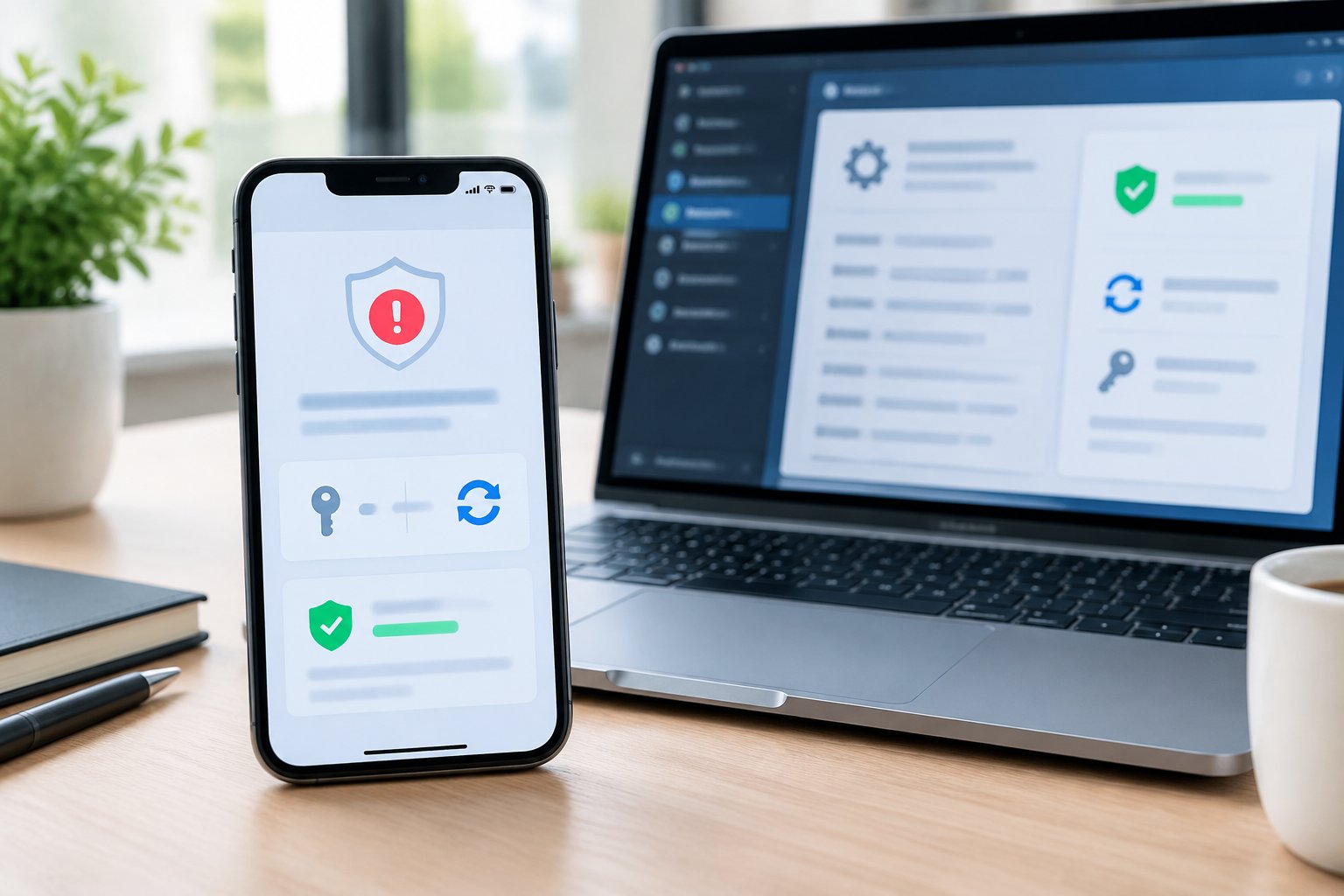
The safest fix is to stop using the expired installation, update iOS, check the device date and time, and obtain a valid app version from the provider’s official support channel. This guide also explains how to review developer trust settings without weakening the device’s broader security.
It covers common verification errors, safer installation practices, account protection, and when support should handle the issue. Users should avoid unknown download links, unofficial profiles, and requests for passwords or payment details.
Understanding iOS Enterprise Certificates
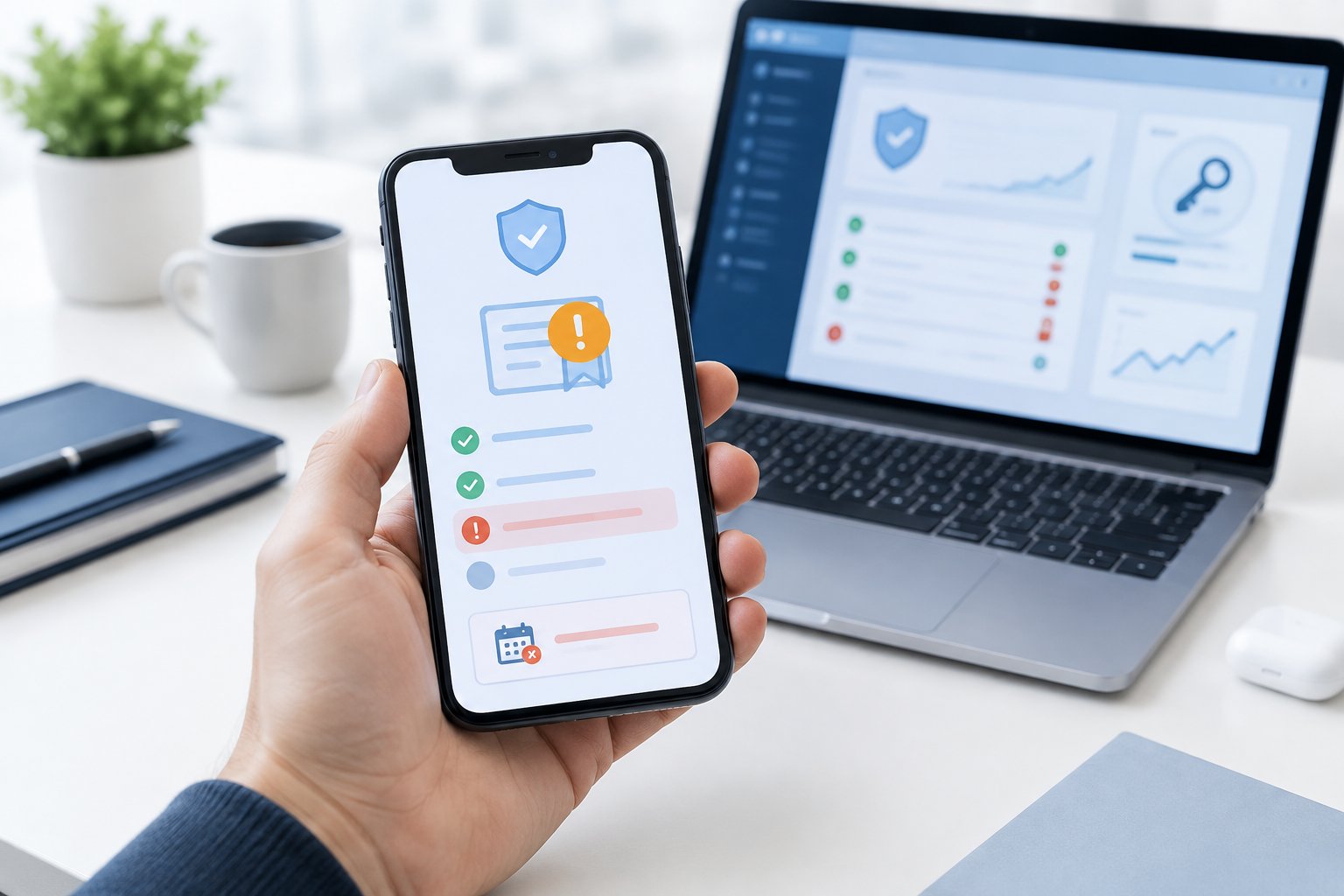
An iOS enterprise certificate authorizes an organization’s internally distributed apps. The validity period, provisioning profile, device trust settings, and Apple’s certificate status all affect whether the app can open.
Why Certificate Expiration Blocks App Launches
An enterprise-distributed app carries a signature linked to the organization’s Apple Developer Enterprise certificate and provisioning profile. These credentials typically remain valid for one year. When the certificate or profile expires, iOS can no longer validate the app’s authorization, so the app may stop launching even if it remains installed.
This issue differs from a normal App Store update. The app provider or organization must create a new certificate, sign a new build, and distribute it through its approved system, such as MDM. Users generally can’t repair an expired enterprise signature by changing a device setting.
A valid certificate can still fail if Apple revokes it, the app’s profile expires, or the device can’t contact Apple’s verification service. Users should avoid installing replacement files from unknown websites because unofficial packages can create security and privacy risks.
Recognizing Expiration Warning Messages
Common messages include “Untrusted Enterprise Developer,” “Unable to Verify App,” and alerts stating that the app’s developer can’t be verified. These messages can indicate an expired certificate, revoked credentials, missing trust approval, an invalid provisioning profile, or a network problem.
If the app was installed by an employer or school, the device may require approval under Settings > General > VPN & Device Management. A manually installed developer profile may need trust approval, while an MDM-managed app normally receives trust settings automatically.
The message alone doesn’t prove that the certificate expired. The user should first connect to a reliable network, confirm that the device uses automatic date and time settings, and check whether other managed apps have the same problem. If the warning persists, the organization’s IT team or app provider must verify the certificate status and issue a properly signed replacement.
Immediate Troubleshooting Steps
An expired or untrusted certificate can result from an incorrect device clock, a network problem, or a temporary iOS issue. The user should verify these basic conditions before attempting to reinstall or trust an app profile.
Checking Device Date and Time
An incorrect date or time can make a valid certificate appear expired because iOS compares the certificate’s validity period with the device clock. The user should open Settings > General > Date & Time and enable Set Automatically. The device should display the correct time zone and current date.
If automatic settings don’t work, the user should connect to a reliable network, turn Set Automatically off, enter the correct date and time manually, and then turn it on again. After making the change, the user should close Safari or the affected app and reopen it.
The user should avoid changing the date backward to bypass a certificate warning. If the warning remains after the clock is correct, the certificate may genuinely be expired, misconfigured, or issued for a different website or service. iOS shouldn’t be configured to trust an unknown certificate solely to remove the alert.
Testing Network Connectivity
A certificate check requires a working connection to the service that provides the website or app. The user should open Safari and visit a reputable HTTPS website. If other secure websites also fail, the problem may involve the current network, DNS settings, or a temporary connection failure rather than the app itself.
The user should switch between trusted Wi-Fi and cellular data to compare results. If the connection works on one network but not the other, the affected network may use filtering, interception, or a captive login page. The user should complete any Wi-Fi sign-in screen and avoid public networks that display certificate warnings.
The user can also restart the router, temporarily disable any VPN or manually installed network filter, and try again. The user shouldn’t proceed when Safari reports an invalid certificate for the requested domain.
Restarting the iPhone or iPad
A restart can clear temporary network sessions and reload iOS certificate and profile services. The user should save open work, then restart the device normally. On devices without a Home button, the user should hold either volume button and the side button until the power-off slider appears, drag the slider, wait about 30 seconds, and hold the side button to turn the device on.
On devices with a Home button, the user should hold the top or side button, use the power-off slider, wait, and then power the device on again. If the device doesn’t respond, a forced restart may help, but the button sequence depends on the model.
After the restart, the user should check Settings > General > Software Update and install an available iOS update from Apple. The user should then test the service again without accepting an unexpected certificate warning.
Installing a Valid App Build
A valid build must come from a trustworthy source and use a current Apple signing certificate. Removing the expired copy before installation can prevent conflicts, while iOS settings and the developer’s instructions determine whether the replacement can open.
Using the Official Download Source
The user should download the app only from its official website, the Apple App Store, or the distributor’s verified platform. An expired certificate usually affects the signed build rather than the iPhone itself, so downloading another copy from an unverified mirror may introduce malware or another revoked certificate.
The distributor should publish a newly signed build after replacing the expired certificate. If the app belongs to a registered developer, the developer must create a new distribution certificate and regenerate the required provisioning profile. Users can’t renew that certificate from iOS.
The user should verify the download page, app name, version, and developer identity before installing. They should avoid modified packages that claim to bypass Apple’s verification because those packages may compromise account or device data.
Removing the Expired Version First
The user should delete the expired app before installing its replacement. They can press and hold the app icon, choose Remove App, select Delete App, and confirm. Deleting the app may remove locally stored data, so important files should be exported or backed up first if the app provides that option.
After deletion, the user can open Settings > General > iPhone Storage and confirm that the app no longer appears. If an old enterprise or developer profile remains, they can review Settings > General > VPN & Device Management and remove only profiles they recognize and no longer need.
The user shouldn’t delete an Apple configuration profile or certificate without confirming its purpose. Removing unrelated profiles can disrupt work accounts, school services, VPN access, or email configuration.
Completing the Installation Process
The user should install the replacement build through the source’s stated method and keep the iPhone connected to the internet. iOS may need to contact Apple to validate the developer signature, provisioning profile, and certificate status.
If iOS displays Untrusted Developer, the user can open Settings > General > VPN & Device Management, select the identified developer, and choose Trust when the source and developer are legitimate. Newer iOS versions may require additional confirmation or may block unsupported enterprise distribution entirely.
If the message says the app can’t be verified, the build may still use an expired, revoked, or invalid certificate. The user should remove it, obtain a newly signed version from the official source, and avoid repeated attempts to bypass Apple’s security checks.
Trusting the Developer Profile
An expired certificate can’t be repaired by trusting a profile. The app must have a valid certificate, and the developer or organization must be recognized before iOS allows it to launch.
Opening Device Management Settings
The user opens Settings and selects General. On recent iOS versions, the relevant menu may appear as VPN & Device Management, Device Management, or Profiles & Device Management, depending on the installed configuration profile.
The user should look for an entry under Enterprise App or Developer App. If no entry appears, iOS hasn’t installed a usable developer profile, or the app’s certificate has already expired or been revoked.
The user should avoid installing profiles from unknown websites. A profile can provide an app with access to device-managed resources, so its organization name should match the source the user intended to use.
Verifying the Enterprise Developer
The user selects the developer or organization listed for the installed app. iOS displays the certificate details and the apps associated with that profile.
The organization name should match the expected provider. If the name looks unrelated, misspelled, or inconsistent with the installation source, the user shouldn’t approve it and should remove the app instead.
An expired or revoked certificate will continue to prevent verification. The user should obtain a newly signed version from the legitimate provider rather than changing the device date, installing random profiles, or attempting to bypass iOS security controls.
Allowing the App to Run
After checking the organization, the user selects Trust [Organization Name] or Verify App, then confirms the prompt. The device usually needs an active Internet connection so iOS can contact Apple’s verification service.
The user can return to the Home Screen and open the app after verification. If iOS still reports that the developer can’t be verified, the certificate may remain expired, revoked, or blocked; deleting the app and installing a current, properly signed version may be necessary.
Trust remains active while the profile and certificate remain valid. Removing every app associated with that developer also removes the trust relationship.
Resolving Installation and Verification Errors
Installation failures usually result from an expired or revoked signing certificate, an interrupted Apple verification check, or stale website data. Users should confirm the app’s source, maintain a stable connection, and avoid profiles that require disabling iOS security controls.
Handling Unable To Verify App Messages
When an iPhone displays “Unable to Verify App,” the device can’t validate the app’s developer certificate. The user should connect to a reliable Wi-Fi or cellular network, temporarily disable any VPN, and set Settings > General > Date & Time to Set Automatically. They can then restart the iPhone and try opening the app again.
For an enterprise-signed app, the user should check Settings > General > VPN & Device Management. If the developer profile appears, they can select it and tap Trust, provided they recognize and trust the organization. iOS may still block the app if Apple has revoked the certificate, so repeated attempts won’t repair a revoked signature.
Clearing Safari Website Data
Safari data can interfere with installation pages, redirects, and authentication sessions used by legitimate distribution services. To remove that stored data, the user can open Settings > Apps > Safari, select Clear History and Website Data, and confirm the action. On older iOS versions, the Safari settings may appear directly under Settings > Safari.
Clearing this data signs the user out of websites and removes saved browsing information. Afterward, Safari should be closed and reopened before the user revisits the official download page. The user should avoid pop-ups that request unknown configuration profiles, certificates, or unrelated apps.
Addressing Revoked Signing Profiles
A revoked signing profile can’t be repaired on the iPhone. Apple may stop an app from launching when its certificate expires, its provisioning profile becomes invalid, or the signing organization loses authorization. Removing and reinstalling the same copy won’t restore a revoked certificate.
The user should delete the affected app and obtain a current version from the App Store or the developer’s verified website. If the app belongs to an organization, its administrator must issue a replacement profile. Users shouldn’t install random certificates or profiles advertised as permanent fixes, because those files can expose device access, account information, or personal data.
Protecting Account and Device Security
A certificate error shouldn’t lead users to disable iPhone security controls or install unknown configuration profiles. Safer steps include checking the original app source, reviewing installed permissions, and protecting login details with unique credentials and multi-factor authentication.
Avoiding Unofficial Repackaged Downloads
Users should avoid downloading replacement IPA files, modified apps, or “fixed” versions from unverified websites. Repackaged apps can contain spyware, altered payment screens, credential-stealing code, or expired signing certificates that trigger the same verification problem.
They should obtain the app only through the official App Store or the provider’s verified distribution channel. If the app came from an enterprise or ad hoc source, the user should contact the developer for a newly signed release instead of searching for a different download.
Users should also avoid tools that promise permanent certificate bypasses. iOS blocks unverified software for security reasons, and bypassing those controls can expose account data and device contents.
Reviewing Profile Permissions
Users should check Settings > General > VPN & Device Management for profiles, enterprise app entries, and management certificates they don’t recognize. An unfamiliar profile may control network settings, install certificates, manage applications, or access organizational functions.
They should remove profiles that came from unofficial downloads or an unknown administrator. A legitimate workplace or school profile should remain unless the responsible administrator confirms that removal is safe.
Users shouldn’t enable full trust for a manually installed root certificate merely to open an app or website. They should enable certificate trust only when a known organization provides the certificate through a verified process, such as Mobile Device Management, and explains its purpose.
Using Strong Account Credentials
Users should create a unique password for the account connected to the app. Reusing an email, banking, or Apple Account password can make the damage worse if an unofficial app or website captures the login information.
They should enable multi-factor authentication whenever the service supports it. It’s also worth reviewing recent sign-ins, linked devices, and recovery details. If they entered credentials into an unofficial app or suspicious website, they should change the password right away from a trusted device and sign out of other sessions.
They should never provide Apple Account passwords, verification codes, or payment details to a certificate-fix tool. Legitimate app support doesn’t need those secrets to issue a valid update.
When To Contact Customer Support
Support becomes appropriate when the Pussy888 iOS certificate remains expired after the user checks the device date, updates iOS, and tries a trusted network. An expired certificate usually requires action from the app or website operator, not a change in iPhone settings.
Information To Provide With a Support Request
The user should provide the exact error message, a screenshot with personal information hidden, and the date and time the problem occurred. They should identify the iPhone model, iOS version, browser or app version, and whether the issue appears on Wi-Fi, mobile data, or both.
They should also say whether the certificate warning appears during website access, app installation, login, or another action. If the warning names a certificate, domain, or issuer, that detail may help support identify the affected service.
The user should avoid sending passwords, Apple Account credentials, payment details, device passcodes, or certificate files. Support may ask for network or diagnostic information, but the user should share it only through a verified support channel.
Using Authorized Support Channels
Contact the service through its official website, a verified in-app contact option, or another channel the provider has confirmed. Avoid links from unsolicited messages, unofficial download pages, and accounts that request remote access or sensitive credentials.
Apple Support can help determine whether iOS, a date-and-time setting, or an installed profile contributes to the warning. However, Apple can’t renew a certificate that an independent website or service presents. The provider must replace an expired server certificate.
Don’t enable trust for an unknown root certificate just to bypass the warning. iPhone users should review Settings > General > VPN & Device Management for unfamiliar profiles. Remove a profile only after confirming that it’s unnecessary and safe to remove.
For a related problem, see Pussy888 on iPad Setup Guide: What You Need to Know.